Download and Install the IPSec VPN client for Windows:
Download and unzip the config file:
Double click the "VPN Access Manager" shortcut on your Desktop to start the VPN client program.
Click File button on the menu bar.
Cick Import button to import one the config files (for example 1.gfwvpn.com.vpn). It was unzipped from cisco-ipsec-config.zip in step 2.
Click the Connect button on the "VPN Access Manager" window.
Input Username and Password on the popup window, and then click Connect button to start the VPN.
After the VPN connection is done, do NOT close the popup window, or else it will disconnect the VPN.
Tips 1: you can select the "Minimize when connection succeeds" and "Remember the connection user name" in the Preference setting of "VPN Access Manager".
Tips 2: you can select the Window Style:"Visible in System Tray only" in the Preference setting of "VPN Access Manager".
Mac OS X 10.5+: Cisco IPSec PSK VPN Setup
Click the Apple Menu in the upper left corner
Click on System Preferences
In the System Preferences window, click Network
In the Network window, click the Lock and enter your password.
Click + to add a new connection.
In the following prompt, for Interface: select VPN
In the VPN Type:, select Cisco IPSec
In the Service Name: field, enter gfwvpnipsec
Click Create
In the Server Address: field, enter your supplied server (for example:1.gfwvpn.com)
In the Account Name: field, enter your supplied username
Click Authentication Settings
In the Password: field, enter your supplied password
In the Shared Secret: field, enter gfwvpn
Click Ok
Click Connect
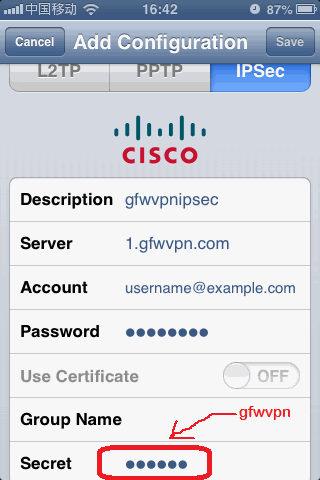
iPhone / iTouch / iPad: Cisco IPSec PSK VPN Setup
Open the Settings application
Click on General
Click on Network
Click on VPN
Click on Add VPN Configuration
Select IPSec tab from the (L2TP,PPTP,IPSec)
In the Description field, enter gfwvpnipsec
In the Server field, enter your supplied server (for example:1.gfwvpn.com)
In the Account field, enter your supplied username
In the Password field, enter your supplied password
In the Secret field, enter gfwvpn
Click Save
Press the Home button
Open the Settings application
Click on VPN
Click on gfwvpnipsec
Set VPN to ON
Android: Cisco IPSec PSK VPN Setup
Open Settings and click on Wireless Controls
Click on VPN Settings
Click on Add VPN
In the VPN Name field, enter gfwvpnipsec
For the VPN Type, choose IPSec Xauth PSK
In the Server address field, enter your supplied server (for example:1.gfwvpn.com)
Set IPSec pre-shared key to gfwvpn
Click Save
Click on gfwvpnipsec
In the Username: field, enter your supplied username
In the Password: field, enter your supplied password